Cost export setup
The Cost export setup page guides a distributor through the process of creating a FOCUS cost export and connecting Azure billing accounts to DoiT. Once connected, the daily export keeps delivering without further configuration.
Required permissions
-
To generate a setup command in the DoiT console, your DoiT account must have the Azure Tenant Mapper permission.
-
To run the setup command in Azure, you need the Reader role (or higher) on the Microsoft Partner Agreement billing account that you want to connect. A Microsoft Entra role such as Billing Administrator is not sufficient.
-
The account with its Reader role must stay in place for as long as the billing data should flow to DoiT. If the account loses the role or leaves the tenant, the daily runs fail with
Export failed due to loss of access. Contact your DoiT account manager for guidance. -
The Reader role can create exports to send the billing account's cost data to other tenants. Assign it only to the account that runs the cost export setup. See Manage access to billing information for Azure and Assign Azure roles using the Azure portal for more information.
-
Set up billing export
Step 1: Get the command
You get the setup command from your DoiT contact, or generate it from the DoiT console:
-
Sign in to the DoiT console, select Azure revenue management > Cost export setup from the top navigation mega menu (or use the quick link).
-
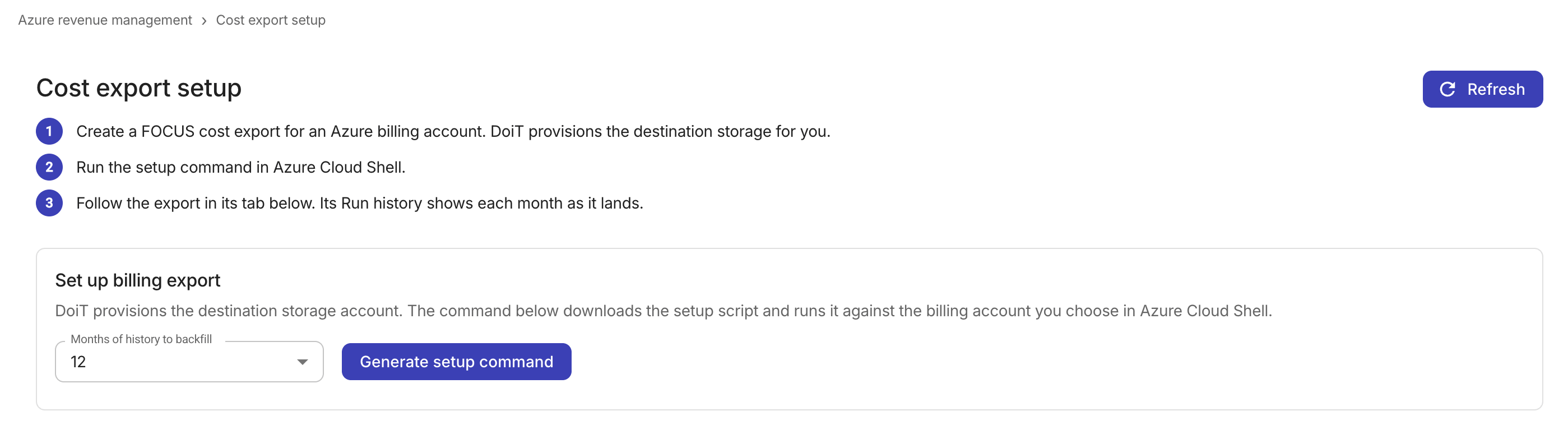
Specify the number of months of historical data to backfill. You can choose up to 12 months.
-
Select Generate setup command.
DoiT begins provisioning a destination storage account. Once the storage account is ready, the console displays the setup command with a one-time task ID to authorize the script for this export.
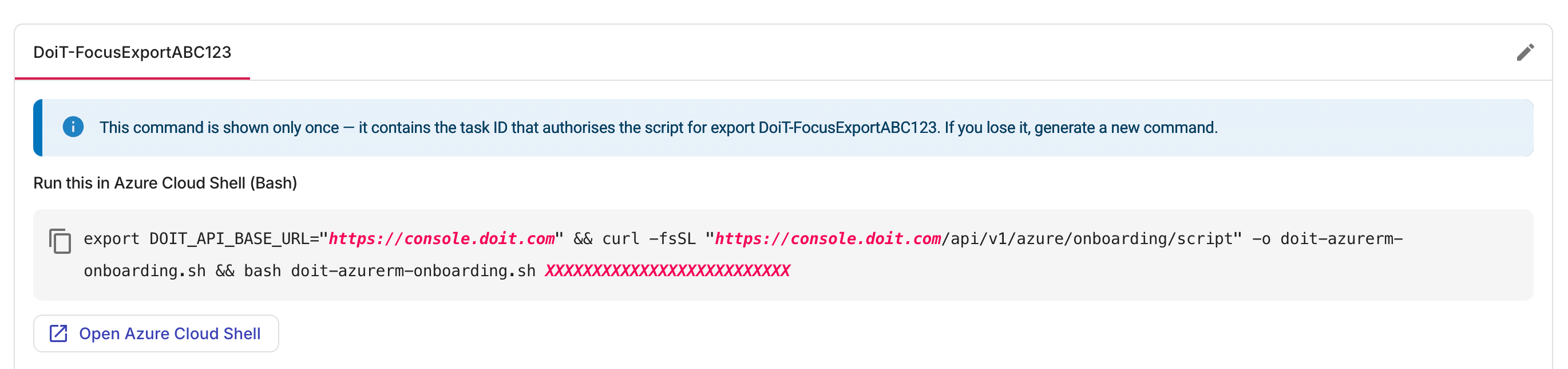
The command is displayed only once per session. If you navigate away from the page or reload it after the command appears, you cannot retrieve it. Generate a new setup command if you no longer have the original.
Rerunning a command resumes where it stopped and doesn't affect the previous task's storage and configuration. An unused command expires after 30 days.
Step 2: Run the command
-
Copy the setup command and run it in Azure Cloud Shell (Bash).
If your tenant has no Azure subscription to start Azure Cloud Shell, run the setup command locally instead:
-
On any machine with Bash, install Azure CLI,
curl, andjq. -
Sign in to the tenant that holds the billing account:
az login --tenant <your tenant ID or domain> --allow-no-subscriptions -
Paste the setup command from the console and run it.
-
-
Confirm the prompts:
-
Use this billing account? (y/n): Verify that it is your Microsoft Partner Agreement billing account, then entery. -
Review: Check the displayed export name (starting withDoiT-FocusExport) and the target DoiT storage it writes to. Enteryto create the export.
-
The setup command creates a FOCUS cost export on your Azure billing account and delivers the data into the DoiT-provisioned storage. The backfill can take about 15 minutes or a few hours, depending on the number of months selected. If the session closes or the command stops, run the same command again. Months that were already delivered are skipped.
Export tabs
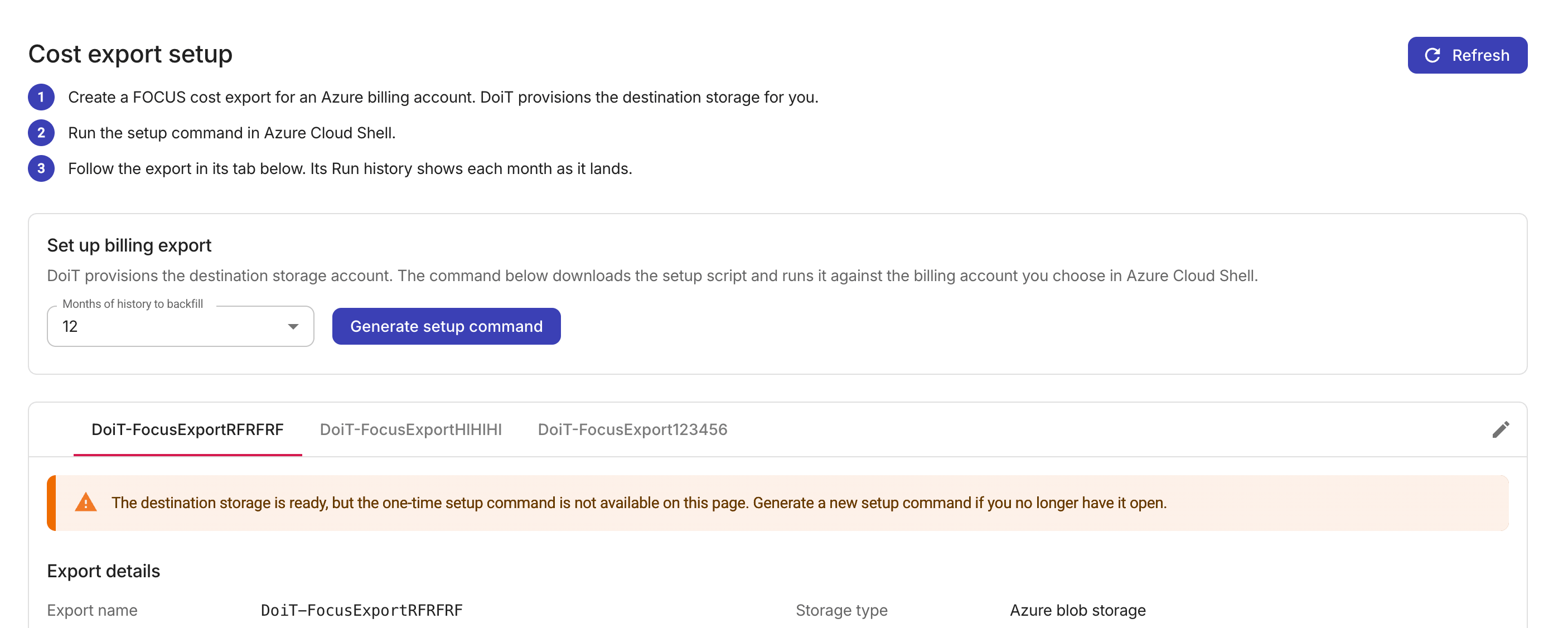
Each cost export appears as a tab on the setup page.
-
The tab label shows the export's display name, which defaults to the generated export name. You can rename an export to assign it a human-readable display name (alias).
-
The DoiT console polls for updates every 15 seconds while an export is active. You can also select Refresh to trigger the check manually.
Export details
The Export details section shows key information about the selected export in two parts: Export configuration and storage details. The fields are populated after the setup script creates the export.
- Export configuration
- DoiT-provisioned storage
-
Export name: The generated name used in the Azure portal and in the storage path. Use this name when looking up the export in Azure Cost Management.
-
Scope: The Azure billing account name and ID. It defines the Azure billing account scope that the export covers.
-
Set up by: The account that ran the setup command for this export. This field appears once the export has been created.
-
Type of data: The data format.
Cost and usage details (FOCUS) · Preview -
Dataset version: The FOCUS dataset version.
-
Frequency: How often Azure runs the export.
-
Export start date (UTC): When the export schedule began.
-
Storage type: Azure blob storage.
-
Storage account: The name of the DoiT-provisioned storage account where export files land.
-
Storage container: The blob container within the storage account.
-
Storage directory: The path where export files are written.
-
Format: The file format of the exported data.
-
File partitioning: Whether files are partitioned.
-
Overwrite data: Whether each run overwrites previous data.
Run history
The Run history table tracks delivery statuses for the initial export month and the requested historical backfill months, newest first. It does not monitor later exports or add new calendar months.
Daily export keeps delivering without further configuration. Use Azure Cost Management to monitor ongoing export runs.
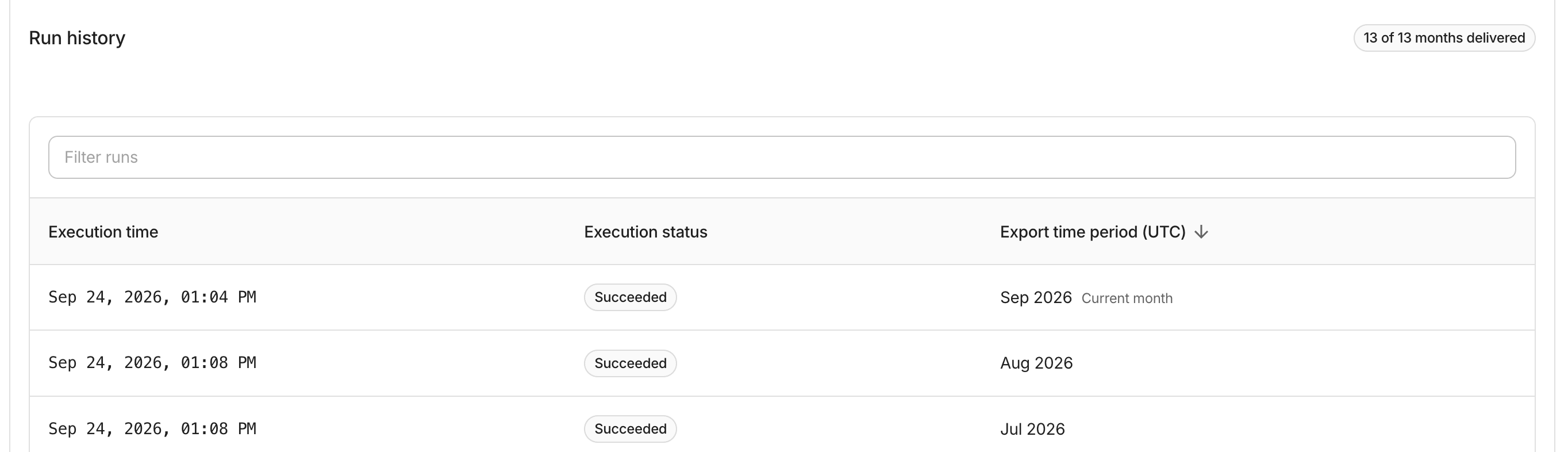
Each row displays:
-
Execution time: The timestamp of the export run (UTC).
-
Execution status: The result of that month's export. Hover over a status chip to see additional details.
Queued: The month is waiting to be exported.In progress: Azure is currently exporting this month's data.Succeeded: The export completed and the data was delivered.No data: The run completed but no cost data was found for the period.Failed: The export encountered an error and failed for this month.
-
Export time period (UTC): The calendar month covered by the export. The month in which the export was created is labeled
Current month.
Rename an export
Renaming an export changes only the display name in the DoiT console. It does not rename the export in Azure Cost Management or change the storage path.
-
Select the export tab you want to rename and select the edit icon.
-
Enter a new display name. The name can contain letters, numbers, spaces, hyphens, and underscores, and must be between 1 and 64 characters.
-
Select Save.
The tab label updates immediately. The original generated export name remains visible in the Export details section and continues to be used in Azure.
Troubleshoot setup errors
If the setup script encounters an error, the Cost export setup page displays an alert with the failure details.
-
No MPA billing account visible: The signed-in account has no role on a Microsoft Partner Agreement billing account, or is signed in to the wrong tenant.To solve the issue, ask an Owner of the billing account to assign the account the Reader role (or higher) under Cost Management + Billing > Billing scopes > your billing account > Access control (IAM). Then run the same setup command again.
-
For other errors, re-run the same command to resume. Months that already delivered successfully are skipped.
What's next
-
Successful cost exports deliver data to DoiT-provisioned storage. You can connect additional billing accounts by generating new setup commands.
Reporting also requires the Azure reseller and end-customer mappings to be configured and downstream processing to complete. The platform then aggregates mapped end-customer spend for resellers and distributors so that Azure appears in Cloud Analytics with FOCUS dimensions at the corresponding tiers. Contact your DoiT account manager to enable the mapping feature in your tenant.
-
The export's access to DoiT storage is valid for 12 months. Before it expires, get a new command from your DoiT account manager or generate one in the console.